· tech
How to Fix PC Fans and RGB Lights That Stay On After Shutdown
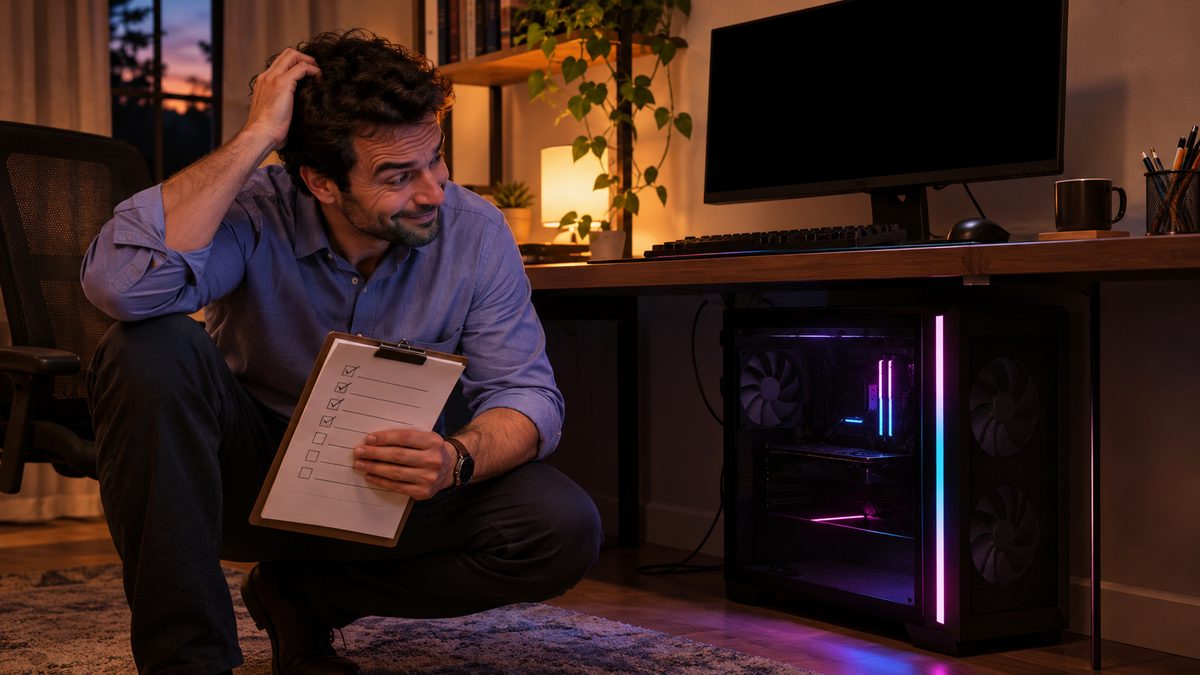
The desktop is supposed to be off. Its screen is black, Windows has closed, and the fans are still spinning while the case lights pulse against the wall. Before pulling the plug, it helps to answer one question: is the PC actually shut down, or is part of it still receiving standby power?
Fans and lighting can behave differently. A motherboard may keep RGB lights on in standby by design, while fans that continue spinning can point to a sleep state, a shutdown setting, or a hardware issue. Start with the simple checks; don’t open the case or change firmware settings until you know what is still running.
Check whether Windows has shut down
First, wait a minute after choosing Start > Power > Shut down. Some PCs take a short time to finish updates or close programs. If the fans stop but the lights stay on, the computer may be shut down normally and the lighting may simply be receiving standby power.
If the fans continue:
- Press a key or move the mouse. If the display wakes and Windows returns, the PC was sleeping rather than shut down.
- Choose Start > Power > Shut down again, then watch whether the display turns off and the fans stop.
- If Windows appears frozen, hold the PC’s power button only as a last resort until it turns off. This can discard unsaved work, so avoid it if the system is still responding.
Record what happens: whether the display goes dark, whether the fans keep turning, and whether the lights stay on. That distinction narrows the cause. A faint light alone does not mean Windows is still running.
Test Windows’ shutdown path
Windows Fast Startup can make shutdown behave differently from a full shutdown. To check whether it is involved, save your work and use the built-in full-shutdown command:
- Open Start, search for Command Prompt, and open it.
- Enter
shutdown /s /f /t 0.
This closes applications and shuts down Windows immediately; /f can force unsaved applications to close. Save files first. If the fans stop after this but not after the usual Shut down choice, Fast Startup or an application’s shutdown behavior may be involved.
To test Fast Startup, open Control Panel > Hardware and Sound > Power Options > Choose what the power buttons do. Select Change settings that are currently unavailable, then clear Turn on fast startup (recommended) if that option is shown. Save changes and try Shut down again. If the setting is missing or controlled by an administrator, skip this test rather than changing system policy.
If the full shutdown also leaves the fans spinning, the issue is less likely to be just Windows’ normal shutdown path. Continue to the firmware and power checks.
Turn off standby lighting in UEFI
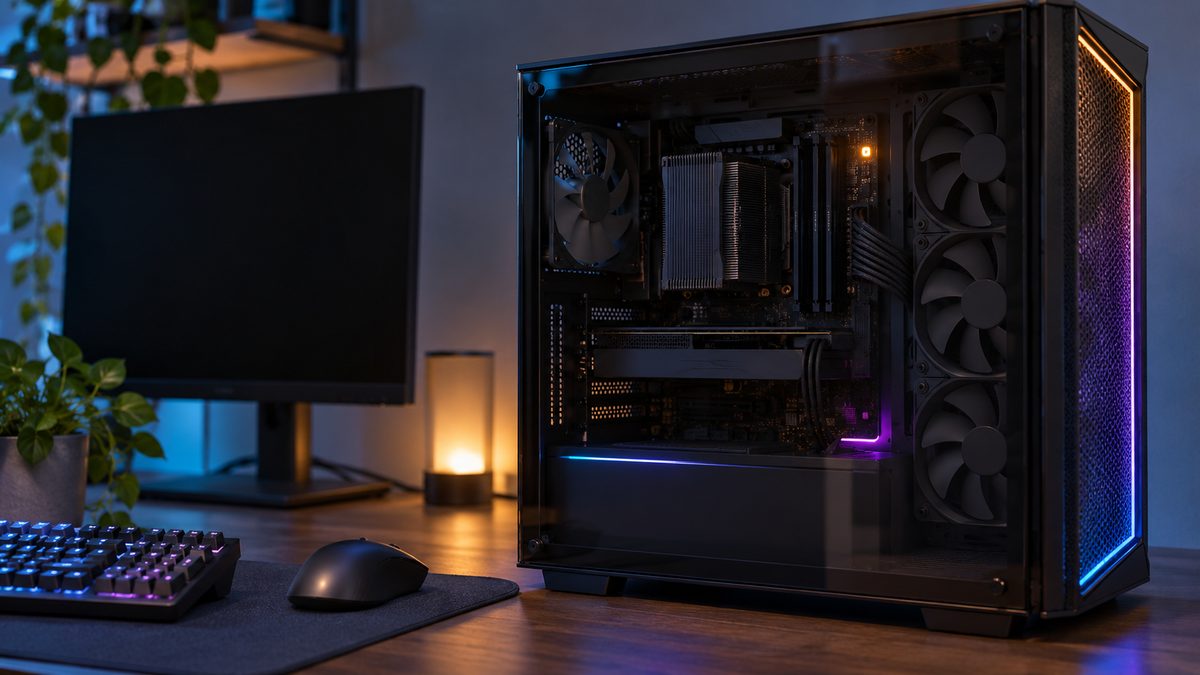
A motherboard can supply a small amount of power after shutdown so it can support features such as wake-on-USB. That standby power may keep motherboard or connected RGB lighting on. The setting is usually in the motherboard’s UEFI/BIOS firmware, but its name and location vary by manufacturer.
Restart the PC and enter UEFI using the key shown during startup, often Delete or F2. Look for a power, onboard-device, or LED section and check for options with names such as LEDs in sleep, hibernate, or soft off, Stealth Mode, or ErP Ready. Consult the motherboard manual for the exact setting.
- If the option specifically controls LEDs in the off state, disable those lights and save the change.
- An ErP setting can reduce standby power, but it may also disable features such as USB charging while the PC is off or waking the PC with a keyboard or mouse. Enable it only if you are comfortable losing those features.
- If you cannot identify the right option, leave the firmware unchanged. Do not update the BIOS just to turn off lights.
After saving, shut down and check again. If the lights go out but fans still run, that is a separate symptom and needs further diagnosis.
If fans still run after Windows and UEFI checks
Check whether the fans are truly spinning or merely illuminated. RGB fans can stay lit while their blades are stopped; some models also make a brief movement during power-off. If the blades keep turning continuously after a full shutdown, note whether all fans run or only one, and whether they stop when you switch off the power supply.
Do not unplug internal fan or RGB cables while the PC is connected to power. If you are comfortable inspecting the case, shut Windows down, switch the power supply off, unplug its power cord, and wait for the motherboard’s lights to go out before opening the case. Do not force connectors or change wiring based on color alone. Fan power connectors and RGB connectors are different; connecting a 5-volt, three-pin addressable RGB plug to a 12-volt, four-pin RGB header can damage the lighting hardware.
If you are unsure which connector or controller powers a fan, close the case and ask a qualified repair technician to inspect it. Fans that keep spinning despite a confirmed shutdown may indicate a motherboard, fan controller, or power-supply control problem. Stop troubleshooting and seek service if you notice a burning smell, unusual heat, electrical buzzing, or visible damage.
What the result tells you
- Fans stop, lights remain on: likely standby lighting; look for the motherboard’s LED-off or ErP setting.
- A key or mouse wakes the PC: it was sleeping, not shut down.
- A full shutdown stops the fans, but normal Shut down does not: investigate Fast Startup or software that interferes with shutdown.
- Fans keep spinning after a full shutdown: confirm the BIOS lighting settings are not being mistaken for fan operation, then have the hardware checked if the behavior persists.
The useful distinction is simple: lights can remain on without Windows running, but continuously spinning fans deserve a closer look. Once you know which one is happening, you can change the right setting without pulling cables at random.