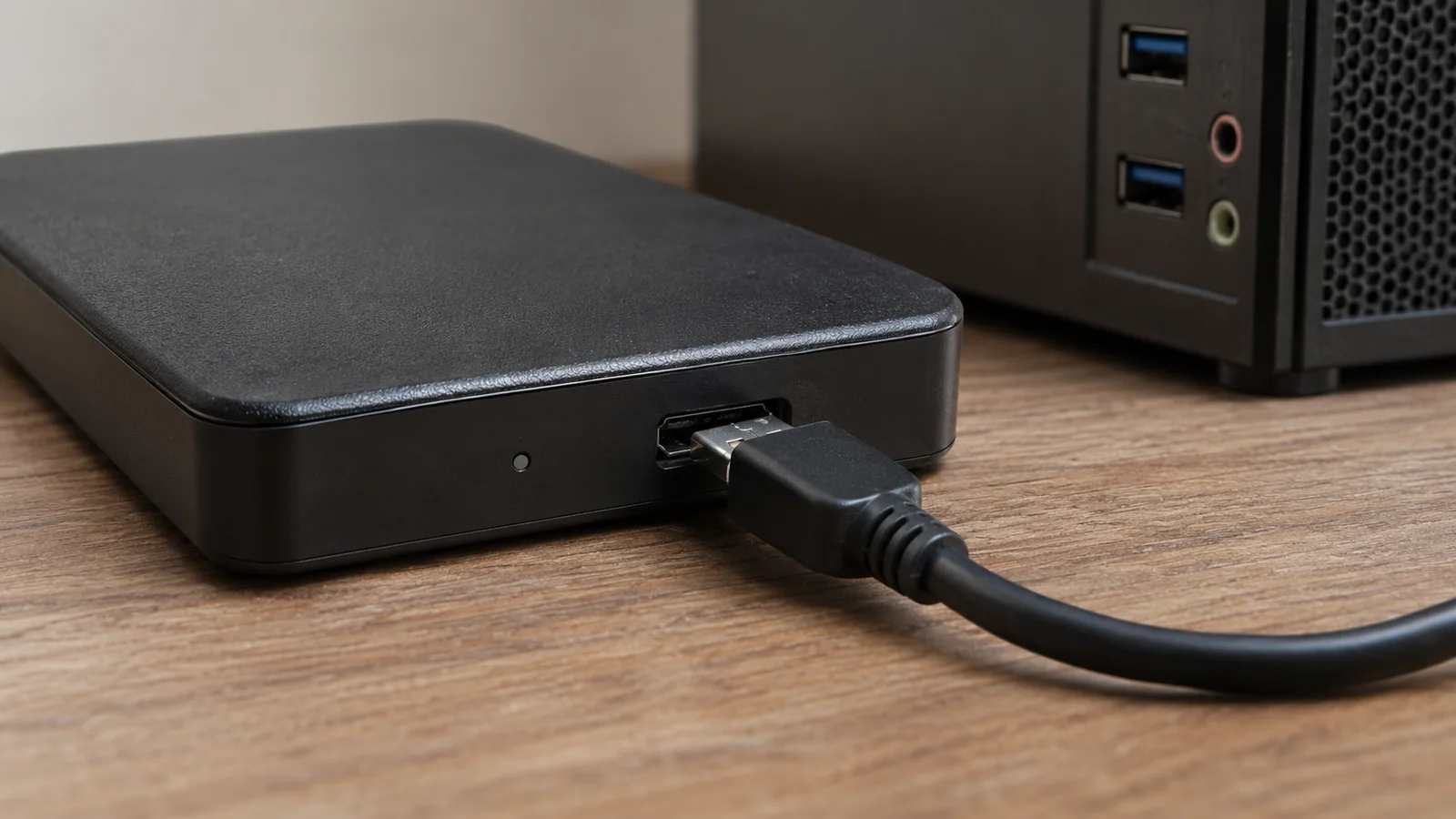
The warning arrived at the worst possible minute. A project folder was due before the morning meeting, and the external hard drive that held the last copy suddenly answered every double-click with “Access is denied.” My colleague leaned over the desk. “Run CHKDSK. It fixes disks.” My fingers were already halfway to the keyboard when I noticed the drive letter had changed since the last time it was connected.
That was the first twist: “Access denied” is not one diagnosis. Windows can block a folder because of account permissions, keep an encrypted drive locked, fail to mount a volume correctly, or struggle with a damaged file system. CHKDSK is useful for some file-system errors, but it does not unlock BitLocker, repair a loose cable, or grant a Windows account permission. On a disk with valuable data, running a repair command before identifying the failure can be the wrong first move.
The calm plan is to identify the exact drive, protect the data, and only then decide whether to inspect or repair it. This is the point where a two-minute check can save you from turning a readable problem into a recovery job.
| What you see | What it may point to | Safer first action |
|---|---|---|
| One folder says “Access is denied” | Folder permissions or a different Windows account | Check the Security tab and the account that owns the files |
| Windows asks for a BitLocker key | The drive is encrypted and still locked | Unlock it with the correct password or recovery key |
| The volume is RAW, unallocated, missing, or has the wrong capacity | Mounting, partition, or hardware problem | Stop; do not format, initialize, or run repair commands |
| The drive is stable and has a recognized file system | A logical file-system issue may be present | Back up readable files, then consider a status check |
Before CHKDSK, find out what Windows is actually denying
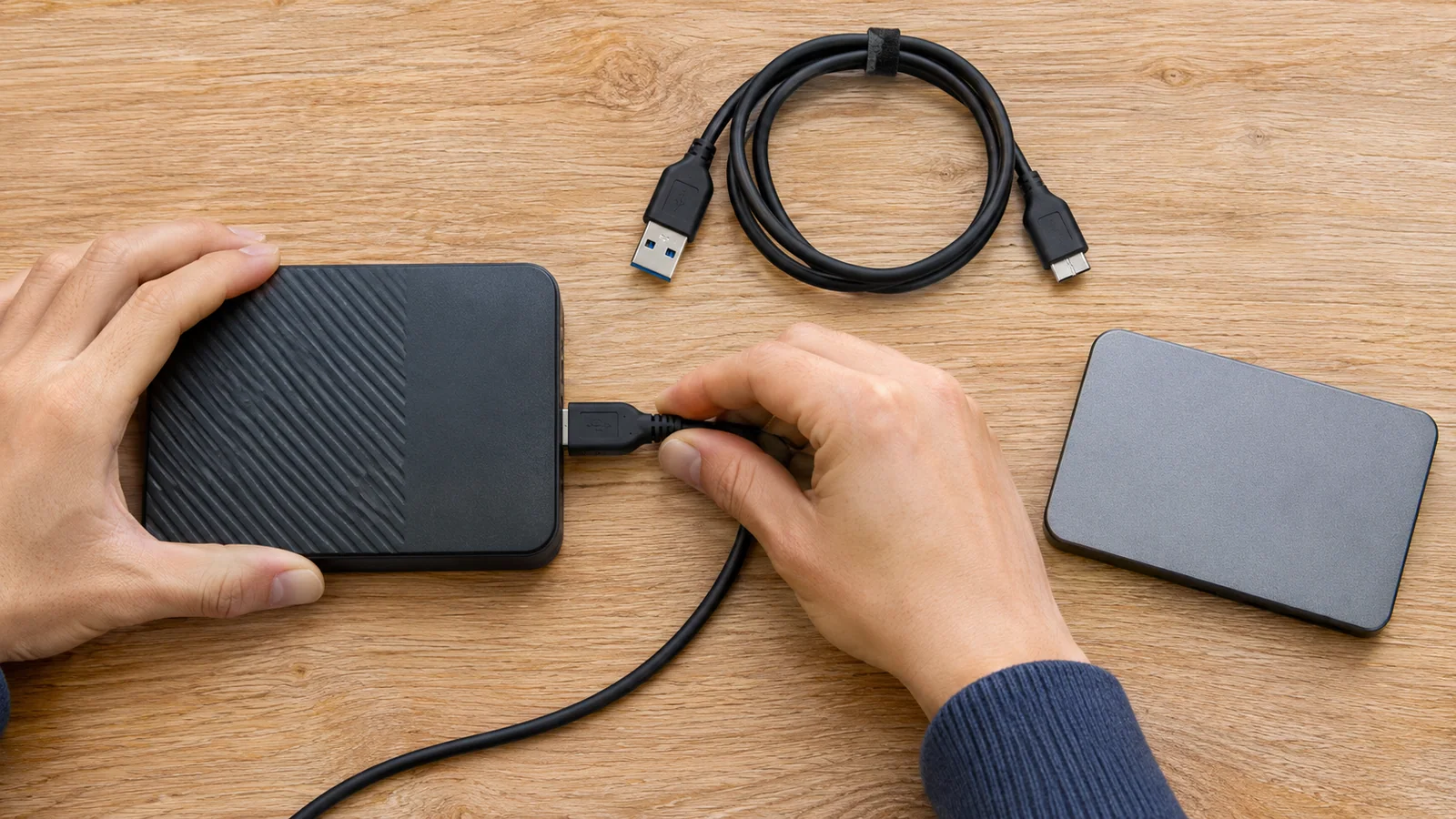
First, disconnect the drive safely, then reconnect it once using a known-good USB port and cable. A bus-powered portable hard drive may behave differently through a hub than when plugged directly into the PC. If the device clicks repeatedly, spins down, vanishes and returns, or is unusually slow, do not keep reconnecting it to “see if it gets better.” Those symptoms can point to a physical problem. Each extra scan or write may reduce the chance of recovering important files.
Open Disk Management by right-clicking Start and choosing Disk Management, or press Win + X and select it. Match the external disk by its capacity and partition layout, not just by its disk number or drive letter. Windows can assign a different letter on another PC. Look at the volume status and file-system label, but do not click Initialize, Format, Delete Volume, or New Simple Volume just because a button is available. Formatting destroys data on the selected volume, and initializing or creating a partition can overwrite information used to locate files.
If the volume appears healthy and has a known file system but no drive letter, right-click that volume and check Change Drive Letter and Paths. Assigning an unused letter can help Windows mount an existing volume. Do not do this to an unallocated or RAW disk, and do not accept a format prompt. Microsoft explains the Disk Management options and warns that formatting destroys data in its Windows Disk Management guide.
Next, ask where the denial occurs. If the drive opens but one old work folder does not, that is a different clue from a whole disk that Windows cannot read. Right-click the folder, choose Properties > Security, and compare the listed accounts with the Windows account currently signed in. A drive moved from an older PC may contain permissions for an account that is not present on this one. Do not add Everyone with full control, and do not run a recursive ownership command across the whole drive as a shortcut. That can expose private files or change permissions you did not mean to touch.
If Windows asks for a BitLocker password or recovery key, stop treating it as a file-system error. The drive is encrypted; CHKDSK cannot decrypt it. Use the password or find the matching recovery key in the Microsoft account or organization that manages the device. Microsoft’s BitLocker recovery-key guide explains where keys may be stored. A lost key cannot be recreated by Microsoft Support, so do not erase the disk in the hope that the files will reappear.
The useful comparison: a locked folder is not a damaged volume
The colleague’s “just run CHKDSK” advice sounded satisfyingly decisive. I compared two clues instead. On the first computer, the drive appeared with its normal size and the other folders opened. On the second account, only the inherited project folder refused access. That pattern points toward permissions; it does not prove the drive has file-system corruption. If the same volume is readable on a trusted computer, copy essential files to a separate physical drive before trying repairs. Verify that several copied files actually open. A copy that merely appears in Explorer is not yet a backup you can rely on.
The opposite pattern deserves more caution. If Windows calls the volume RAW, Disk Management says Unallocated, the capacity is missing or wildly wrong, or the drive disconnects during access, stop. Do not run /f or /r, do not format, and do not create a new volume. If the files matter, minimize further use and consider a reputable recovery professional. When a disk is failing physically, a long scan can keep the mechanism working for hours while producing no useful copy.
If the drive is stable, recognized, and has a normal file system, you can use CHKDSK in stages. Open Command Prompt as administrator, verify the correct external drive letter in File Explorer, and type chkdsk E: with the actual letter in place of E:. Without repair switches, CHKDSK reports the volume status; it does not fix errors. Do not copy the example letter blindly. A wrong letter could target another disk.
Read the result before adding a switch. /f attempts to correct logical file-system errors and writes changes to the volume. /r looks for bad sectors and attempts to recover readable information; it includes /f and can take a long time. These are not general “make my files visible” buttons. Back up important readable files first, and do not run them on a disk that clicks, disconnects, shows RAW/unallocated status, or contains irreplaceable data without a recovery plan. Microsoft documents the switches and their effects in the CHKDSK command reference.
A safe fix depends on the clue, not the command
If only a folder is blocked, use the correct Windows account and inspect its Properties > Security > Advanced details. On a personally owned PC, an administrator may need to restore access for the current account, but first confirm that the folder really belongs to you and that the drive is not managed by work or school. On a managed device, ask IT before changing ownership or access rules. If the folder belongs to another person, changing permissions is not an appropriate way to bypass that person’s access.
If BitLocker is the obstacle, unlock the drive with its proper key. If the drive is stable but missing a letter, assign an unused letter only after confirming the existing volume and file system. If the volume is healthy but reports a logical error, copy what you can and then consider /f; use /r only when a sector scan is warranted and the drive is not showing signs of physical failure. If you cannot tell which case you have, stop before writing to the disk.
Here is the practical order I keep in mind when the deadline is shouting louder than good judgment: identify the physical disk by capacity; check whether the problem affects one folder, an encrypted drive, or the whole volume; inspect Disk Management without accepting repair or format prompts; save readable files somewhere else; and only then choose a permission fix or a file-system check. The twist is that sometimes the “disk error” is just the wrong account—and sometimes the word “repair” is exactly what should wait.
Common questions
Does CHKDSK fix every “Access is denied” message? No. It checks file-system metadata. It does not grant folder permissions, unlock BitLocker, or repair a failing USB cable.
Should I run chkdsk /r first? No. /r includes /f, looks for bad sectors, and may run for a long time. First confirm the disk is stable and back up valuable files.
What if Disk Management asks me to format the drive? Cancel the prompt if you need the files. A format operation creates a new file system and can make recovery harder.
Can I change the drive letter? If an existing, healthy volume simply lacks a letter, assigning an unused one can help. Do not assign a letter to a RAW or unallocated disk as a repair.
At a glance
Check permissions, BitLocker, volume status, and the physical connection before choosing CHKDSK.
Back up readable data first; stop if the drive is unstable or the volume appears RAW or unallocated.