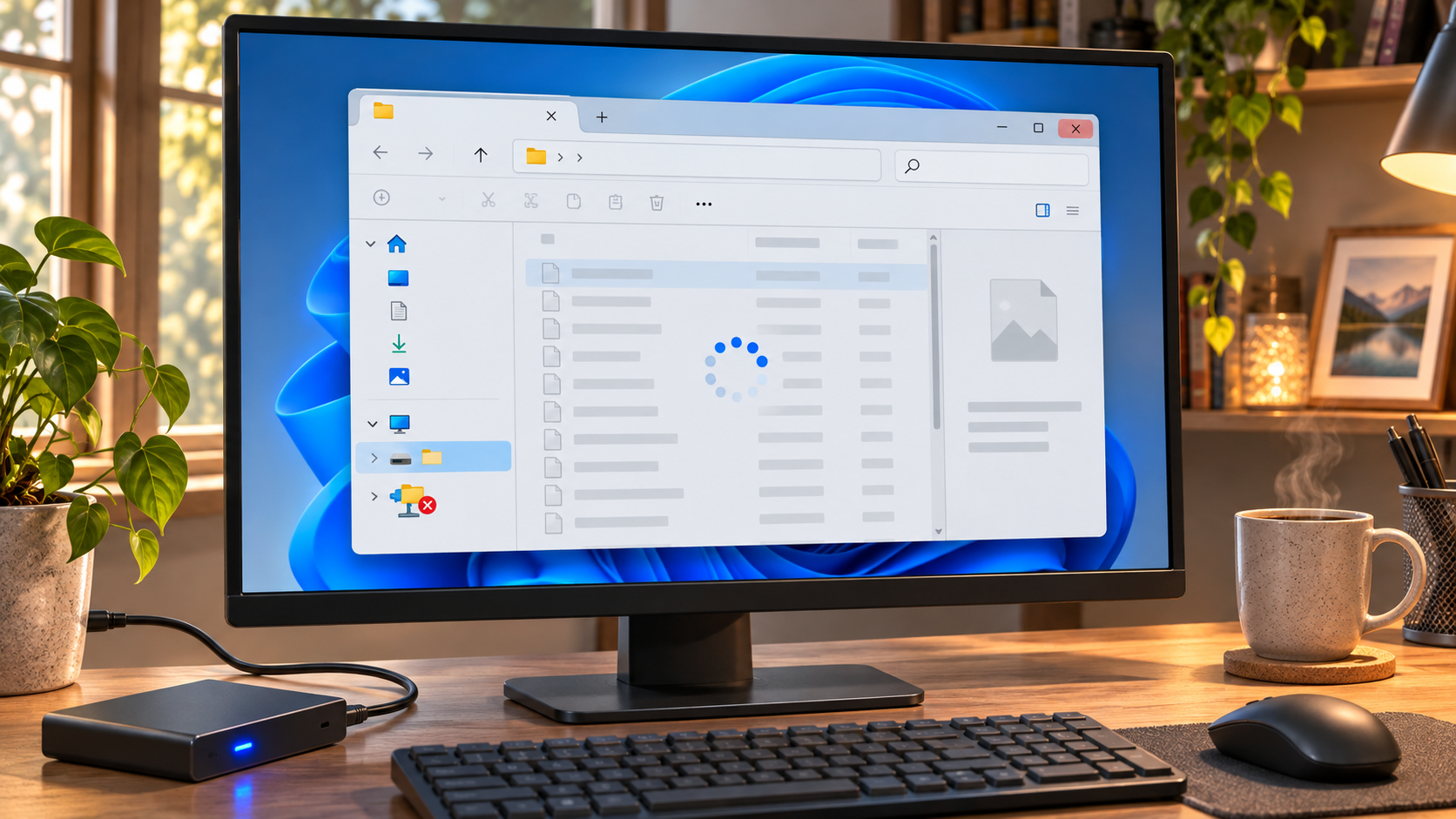
The attachment window froze at the worst moment
The meeting was about to begin when the organizer asked for one last copy of the revised spreadsheet. I opened Downloads, clicked the file, and watched File Explorer turn into a blank white rectangle. The taskbar still responded. The browser still showed the meeting room. A coworker leaned over and asked, “Is the whole computer gone?” My hand was already heading toward the power button when I noticed that the pointer moved normally everywhere else.
That small clue changed the first move. A single File Explorer window can stop responding while Windows and other apps continue to work. Restarting the whole PC might close more work than necessary. At the same time, clicking the frozen window repeatedly or restarting in the middle of a copy can leave it unclear whether a file finished moving. First separate an Explorer-only freeze from a computer-wide lockup, then choose the smallest safe action.
If a file transfer, rename, deletion, or save is in progress, do not repeat it merely because the window stopped drawing. Wait briefly, check the destination from another responsive window if possible, and avoid starting a second copy with the same name. If the entire desktop has stopped responding, that is a broader problem; the Explorer-specific steps below may not apply.
Restart only the part that is stuck
Try a simple check before changing anything. Press Alt+Tab to see whether another open app comes forward. Click the taskbar clock or press Ctrl+Shift+Esc to open Task Manager. If those actions work, Windows is still handling input, even if the folder window is not. If neither works, wait a short moment before deciding that the entire PC has locked up.
In Task Manager, find Windows Explorer in the Processes list. Select it and choose Restart. On some Windows 11 builds the action is available from the right-click menu; in others, the toolbar or task details may show it. The taskbar and desktop may briefly disappear and return. That is expected when the shell restarts. Reopen the folder and check whether the same view loads normally.
Do not confuse restarting Windows Explorer with restarting Windows. The former refreshes the desktop shell and can close File Explorer windows; it does not intentionally reboot the computer. Unsaved work inside another application should remain open, but a file operation that was underway still deserves a status check. If the same folder freezes again, avoid repeating the restart over and over. The recurrence is a clue that the folder contents, preview feature, storage location, or a background extension may be involved.
| What still works | Likely scope to check first | Safe next move |
|---|---|---|
| Browser and taskbar respond; one folder window is stuck | File Explorer or that folder view | Restart Windows Explorer once, then reopen the folder |
| Only one particular folder hangs | Contents, thumbnails, preview, or a connected location | Open another folder and compare; turn off Preview pane temporarily |
| Several apps and the taskbar stop responding | Wider Windows or hardware issue | Wait, note what was happening, and use normal recovery guidance for the device |
| A copy or move was underway | Transfer status may be uncertain | Check source and destination before repeating the operation |
Find the folder or feature that triggers the freeze
The unexpected twist is that “File Explorer is frozen” can describe several different failures. If other folders open, but one directory stalls, the Explorer app may be functioning and waiting on something in that location. A very large folder, a slow external drive, a disconnected network share, a cloud-only file, or a damaged thumbnail can delay the view. Compare a local folder with the affected one before changing Windows-wide settings.
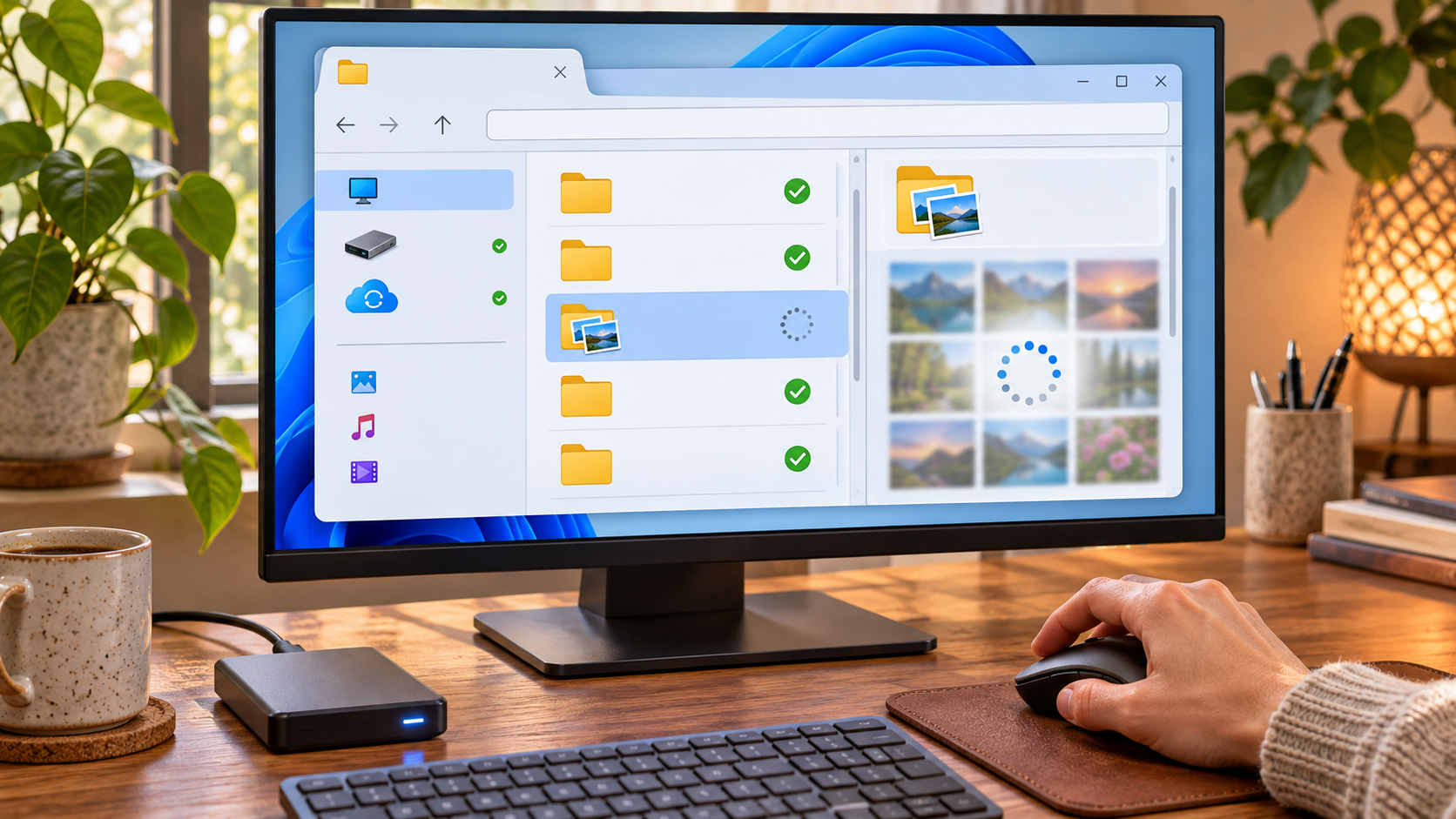
If the affected location is a network drive or removable disk, check that it is connected and accessible. A drive letter can remain visible even when its device or server is no longer reachable. Try opening a small known file from that location, and compare with a local folder. Do not unplug a storage device while its activity light shows work in progress. If OneDrive or another sync service is involved, check its own status and whether the file is available locally before assuming Explorer itself is defective.
Preview features are another useful comparison. In File Explorer, open View > Show > Preview pane and switch the pane off temporarily if it is enabled. Depending on the selected file, a preview handler may take time or fail. You can also change the view from large thumbnails to Details to see whether drawing previews is the trigger. These are reversible checks; restore your preferred view after comparing results.
Recent files and Quick Access can also point Explorer toward unavailable paths. If Explorer freezes at launch rather than after opening a specific folder, try opening a different location from the address bar, such as This PC, and see whether it responds. Then compare with the default startup location. Do not delete personal files or clear folders just to make a test. If a particular item is implicated, record its location and file type first.
| Observation | What it suggests | A useful comparison |
|---|---|---|
| One folder hangs, other folders work | A folder-specific item or location | Compare the same files from a local copy, if available |
| Thumbnail view hangs but Details works | Preview or thumbnail processing | Keep Preview pane off while checking the folder |
| Explorer stalls only when opening a share | The network path may be slow or unavailable | Test another known network location and local folder |
| Explorer freezes immediately on launch | Startup location or recent path may be involved | Open This PC or another folder directly |
When the problem keeps returning
After the simple comparisons, install current Windows updates through Settings > Windows Update when convenient, then restart at a time when open work is saved. Updates can include reliability fixes, but they are not proof that every freeze is caused by Windows. If the trouble started after installing a shell extension, archive utility, cloud client, or device driver, note the timing and review that software’s update or support information before uninstalling system components.
Use Windows’ built-in repair commands only when the symptoms suggest a broader system issue, such as several Windows components failing or repeated errors beyond one folder. Microsoft documents the Deployment Image Servicing and Management tool and System File Checker for repairing Windows image and system-file problems. Open Terminal (Admin) or Command Prompt (Admin) and follow Microsoft’s current order and instructions; DISM may require an internet connection, and these commands can take time. They are not the first response to one slow network folder.
Before trying repair commands, save work and make sure the computer will not lose power. Do not run commands copied from an unverified post, delete system folders, or edit the registry to force Explorer to behave. For a managed work device, company policy or IT support may control shell components and network locations. If the PC repeatedly becomes unresponsive across multiple apps, record when it happens, the folder or device involved, and any error message; that evidence is more useful than repeatedly pressing Restart.
The decision that looked dramatic at first—holding the power button—was not the first useful clue. The actual clue was that the rest of the desktop still worked. Once the scope is clear, a single shell restart and a few controlled comparisons often reveal whether the problem follows a folder, a preview, a remote drive, or Windows more broadly.
Quick questions
Should I restart the entire PC when File Explorer says Not responding? Not immediately if the taskbar and other apps still respond. Try restarting Windows Explorer once, then check the affected folder and any file operation that was underway.
Will restarting Windows Explorer delete my files? It is intended to restart the Windows desktop shell, not erase files. Still, do not interrupt a copy or move casually; verify the source and destination before repeating it.
Why does only one folder freeze? That folder may contain a slow-to-read item, large collection, preview issue, or a path on a disconnected device or network. Compare it with a different folder and a different view before changing system settings.
When should I use DISM or System File Checker? Consider them when Windows symptoms extend beyond one Explorer folder or when there are signs of damaged system components. Follow Microsoft’s current instructions and do not treat them as a routine fix for every delay.
At a glance
If only File Explorer is stuck, restart Windows Explorer once and check the transfer status before retrying.
If one folder keeps freezing, compare its location and view before attempting broader Windows repairs.