
The morning the desktop looked twice as wide
I opened my laptop before a meeting and found the folders on the desktop scattered farther apart than I remembered. I had connected an external monitor the previous evening, but my first thought was that a Windows update had rearranged everything. Shrinking the icons changed their size, not the empty space between them.
“Just change the spacing number in the registry,” a colleague said. Search results offered numbers that were easy to copy, but another computer may use a different resolution or scale. I decided to separate a display-setting issue from a saved spacing value before editing anything.
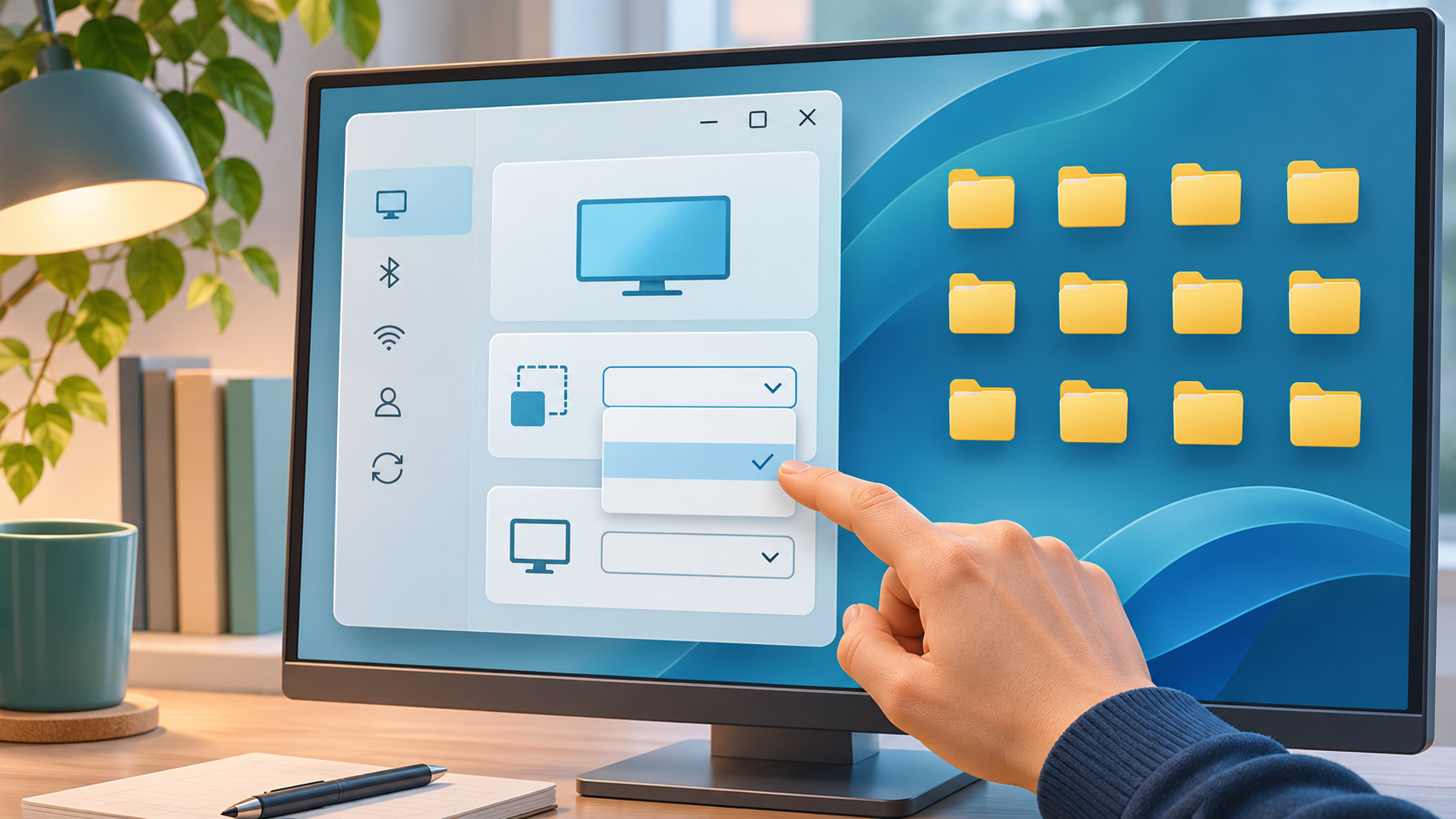
Check the grid and display scale first
Desktop layout can reflect icon size, grid alignment, monitor resolution, and scale. When grid alignment is on, icons do not move to arbitrary positions. A different display scale can also make a familiar grid look unusually wide.
Right-click an empty area of the desktop, open View, and check icon size and Align icons to grid. Then open Settings > System > Display, select the affected monitor, and check the values marked Recommended for resolution and scale. With multiple monitors, select and compare each one. Microsoft’s display instructions also start by selecting the screen being changed and recommend the appropriate resolution and scaling choices. Change screen resolution and layout
| What you notice | Check first | Next step |
|---|---|---|
| Icons resist free placement | Grid alignment | Check the View menu |
| All gaps seem wider | Scale and resolution | Compare recommended values per display |
| Only the external screen differs | Per-monitor scale | Select that display and inspect it |
Make a rollback plan before touching the registry
The current user’s HKEY_CURRENT_USER\Control Panel\Desktop\WindowMetrics key commonly contains the IconSpacing and IconVerticalSpacing strings related to horizontal and vertical icon gaps. Knowing where they are does not make a number found online universally correct. Microsoft advises exporting registry keys before editing so they can be restored if something goes wrong. Back up and restore the Windows registry
If display checks do not explain the problem and you are comfortable with Registry Editor, press Win + R, enter regedit, and verify the path carefully. Select WindowMetrics, use File > Export, and separately record both existing strings. Change one value only, then sign out and back in or restart Windows Explorer before judging the result. Restore the saved original value if spacing gets worse. On a work-managed PC, or if you are unsure what the key does, stop and ask the administrator instead.
The clue was not a broken set of icons: the connected screen used a different scale. Changing size and spacing at the same time would have hidden that distinction. Check one setting at a time and keep a record of what changed.
A useful way to avoid a false diagnosis is to separate three kinds of desktop behavior: the size of each icon, whether Windows sorts the icons automatically, and the spacing of the grid itself. These controls can produce similar-looking results from a distance, but they answer different needs. If you only want a folder to appear larger, changing a spacing value is the wrong lever. If icons keep jumping back into columns after you drag them, automatic arrangement may be involved. If they move but stop at regular positions, grid alignment may be involved. Test these view options one at a time so you can tell which behavior changed.
Windows exposes icon-size choices from the desktop View menu. On many setups, holding Ctrl while scrolling the mouse wheel over the desktop also changes icon size. This is a reversible presentation adjustment and does not require editing the registry. It can help diagnose the difference between “the icons look too big” and “the spaces between grid positions look too wide.” If labels wrap or icons spill toward a screen edge, check both size and display scale before assuming the stored spacing is the cause.
Multi-monitor setups add another layer. Each display may use its own resolution and scale, and Windows lets you select a particular screen in Settings > System > Display before changing those values. A laptop panel and an external monitor can have different native pixel dimensions, so a layout that looks balanced on one may feel sparse on the other. Compare the selected monitor, its Recommended resolution, and its scale value. If the spacing problem appears only after docking or disconnecting a display, note which connection state triggers it; that clue is more useful than repeatedly changing the same registry number.
Also ask whether the issue affects one Windows account or every account on the device. The path discussed here begins with HKEY_CURRENT_USER, which is scoped to the signed-in user. A spacing change in one profile does not necessarily explain a different profile’s desktop. If other accounts are unaffected, compare their view settings rather than copying their registry data into yours. On a shared or managed computer, user settings may be reset by policy, so check with the administrator before editing.
The WindowMetrics key contains other display-related entries as well. That is why the safest troubleshooting boundary is narrow: inspect the two spacing values named in the article, do not edit neighboring values just because their names sound related, and do not delete the key. Record the existing type and contents before making a change. The saved export is a recovery aid for this profile, not a universal preset to install on another PC. Importing a file from another computer can overwrite values that were tuned for a different display arrangement.
After a change, give Windows a chance to refresh the desktop before judging it. Sign out and back in, or restart Windows Explorer if you know how to do so safely. Avoid changing several values in quick succession; otherwise, you lose the ability to tell which one caused the result. If the original layout returns after restoring the exported key, stop there. More experimentation is unlikely to help if the underlying cause is a per-display scale setting or automatic arrangement.
You can keep a small change log without recording technical secrets: note the date, which screen was selected, the old and new value, and whether the desktop improved. This is especially useful if the display is shared between a docking station and a conference-room screen. A photo of the desktop before the change can also make a visual comparison easier, but avoid including confidential filenames if the screenshot will be stored outside the device.
Finally, registry editing is optional. It is not a required Windows maintenance step, and it is not the first repair for an icon layout that changed after a monitor or scaling adjustment. On a work-managed device, a computer used by several people, or a machine where you are not sure which profile is active, keep the troubleshooting to the desktop View and Display settings and ask the administrator about anything beyond them. The point is not to find a magic number. It is to identify which setting controls the symptom and leave yourself a reliable way to undo a change.
If the desktop layout changes after a feature update, a new user profile, or a graphics-driver change, compare the visible settings before assuming a hidden registry value was rewritten. Windows updates can alter display behavior through driver changes or monitor detection, but the timing alone does not identify the cause. Check whether the screen selection, resolution, scale, and View options still match your notes. If a setting is controlled by company policy, do not try to bypass that policy with a per-user registry edit. Record the exact symptom and ask support which display profile is expected for the device.
If you want to test a view option, change only Align icons to grid, observe what moves, and then restore the original setting. This can reveal a placement issue without editing registry data.
Frequently asked questions
Should I edit the registry first?
No. Check View and each monitor’s resolution and scale first. If a registry change is still necessary, export the key and record the original strings.
Is an online spacing number right for every PC?
No. Display setups and Windows configurations differ, so do not treat one copied number as a universal setting.
What if the icons spread farther apart after a change?
Restore the original value you recorded or exported, then sign out and back in or restart Explorer to refresh the desktop.
At a glance
Check View and each display’s resolution and scale first.
Back up registry values and change only one at a time.