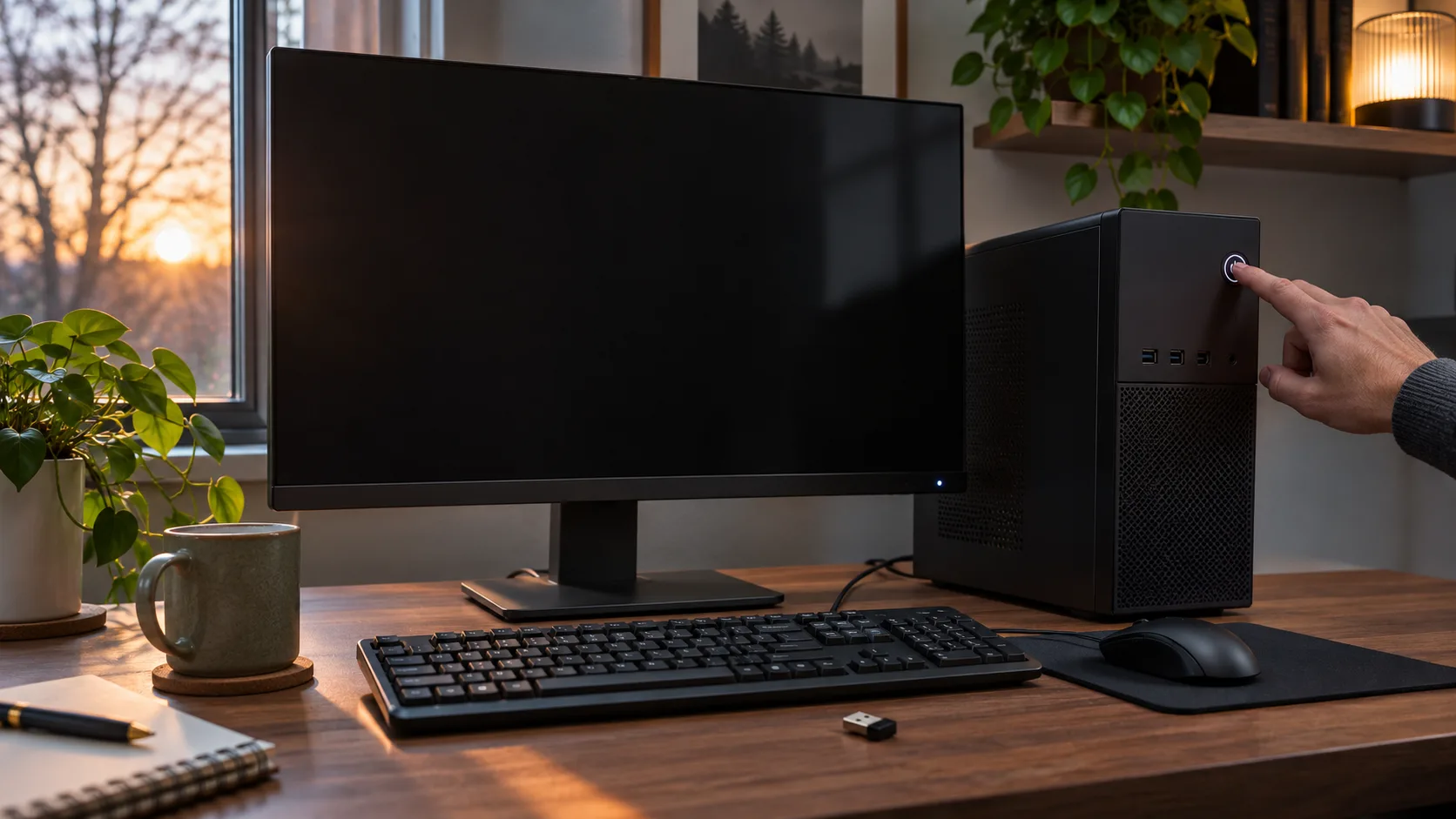
The meeting was five minutes away and the PC would not answer
The calendar reminder appeared on my phone while the desktop monitor stayed black. I moved the mouse, tapped the keyboard, and waited for the sign-in screen. Nothing. My teammate leaned over the desk and said, “Hold the power button. We can restart it before the call.”
That sounded quick until I remembered the spreadsheet and presentation still open on the computer. A long press can force a shutdown, and unsaved work may disappear. The dark monitor alone could not tell me whether Windows was asleep, the display had lost its signal, or the computer had stopped responding. I took my hand off the button and separated those possibilities first.
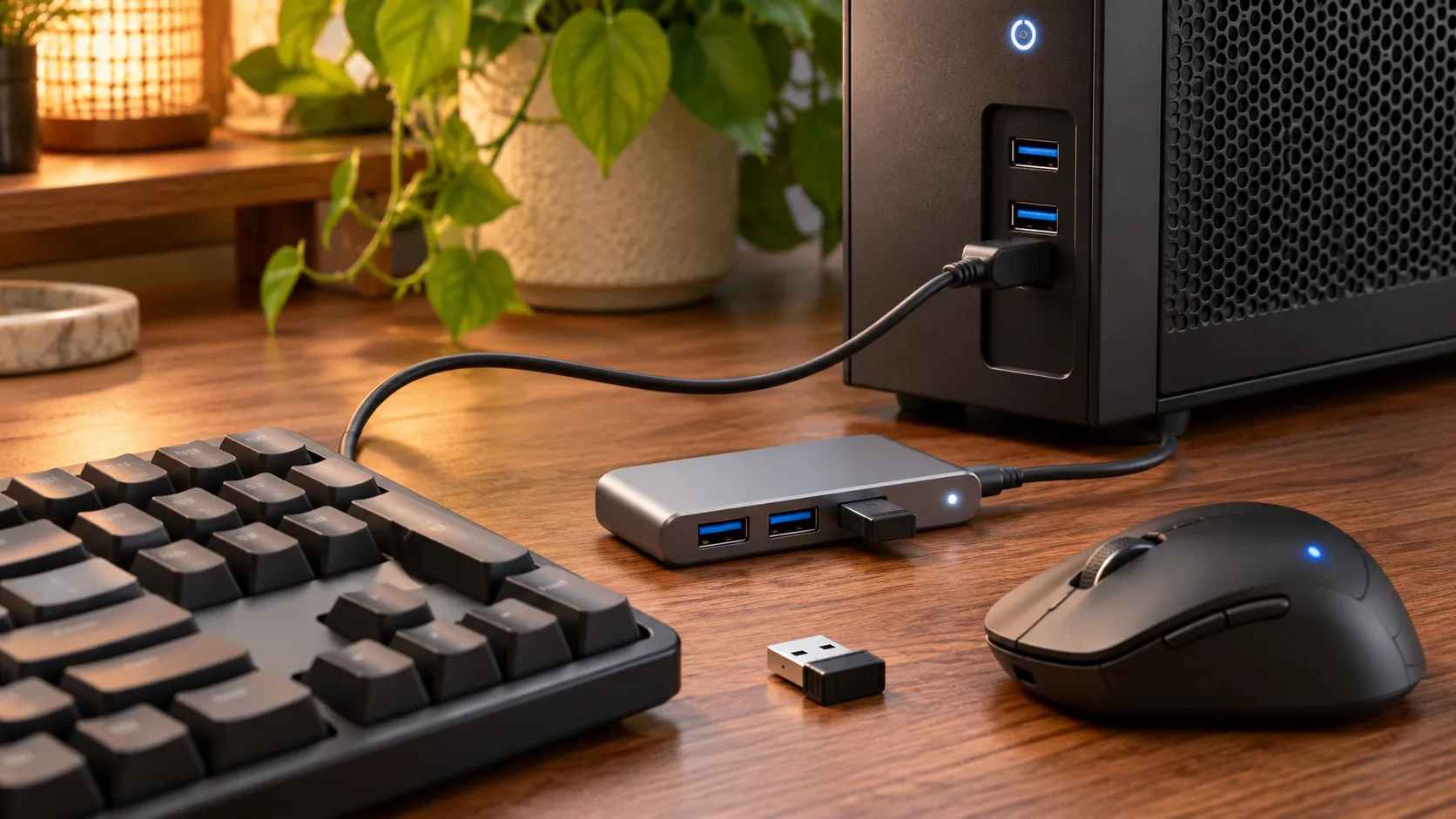
The first clue was small: the monitor’s status light was on, while the desktop tower’s light pulsed slowly. I also had a wireless mouse receiver plugged into a USB hub beneath the desk. The office suddenly had three suspects—display input, a disconnected receiver, and a PC that needed a wake signal—and only one of them justified a restart.
Check the display before blaming Windows
Start with what the screen is telling you. Confirm that the monitor is powered on, its input source matches the cable in use, and the HDMI or DisplayPort connection is seated. A monitor switched to another input can look exactly like an asleep PC. If you use more than one display, check whether Windows is projecting to a different screen or whether only one monitor has gone dark.
Look at the computer’s power indicator and listen for fans, but treat these as clues rather than a diagnosis. Indicator patterns vary by PC maker. A blinking light may mean sleep on one model, while another uses a different pattern. Keyboard backlighting and the Caps Lock indicator are also not universal tests; some keyboards can light while the computer is still unresponsive.
Press the PC’s power button briefly once, then wait several seconds. Microsoft says most PCs can resume from sleep with the power button, though some can also wake from a keyboard, mouse click, or opening a laptop lid. The supported method depends on the computer. Avoid holding the button unless the machine has clearly stopped responding and you are prepared to lose unsaved work. Microsoft’s sleep and hibernate guidance
| What you notice | Check first | Next move |
|---|---|---|
| Monitor is black but tower looks active | Monitor input and cable | Select the connected input and reseat the cable |
| PC indicator suggests sleep | Wake method supported by the PC | Briefly press power, then try a direct wired device |
| Wireless mouse and keyboard do nothing | Receiver, hub, or Bluetooth status | Connect a receiver directly to a PC USB port |
| PC gives no response for an extended time | Whether the machine is frozen | Wait, then follow the PC maker’s recovery steps |
The unexpected turn was that “sleep would not wake” did not always mean sleep was the problem. In this scene, the receiver’s hub connection was the first thing to isolate. A swapped monitor input or a receiver that lost its connection can create the same black-screen panic, so checking them first avoids turning a small connection issue into a forced restart.
Find out whether the keyboard or mouse is allowed to wake the PC
A wired USB keyboard or mouse often makes a useful comparison, but no connection type works on every PC. A Bluetooth keyboard, a USB wireless receiver, a monitor’s built-in hub, and a port on the PC can all behave differently. Support depends on the computer’s sleep state, firmware, hardware, and driver. If possible, plug one wired device directly into the PC and test it separately from the wireless receiver.
Windows can show which devices are currently allowed to wake the computer. Open Terminal or Command Prompt and enter:
powercfg /devicequery wake_armedThe output lists devices whose wake permission is currently armed. It is not a list of every device that could ever support waking, and an empty result does not prove a device is broken. Microsoft documents this command as a query for devices configured to wake the system. Powercfg command-line options
To inspect a specific device, right-click Start, open Device Manager, and expand Keyboards or Mice and other pointing devices. Open the target device’s Properties and look for a Power Management tab. If Windows provides the option, check Allow this device to wake the computer. Some hardware and drivers do not expose that checkbox; its absence is a platform limitation, not evidence that the mouse is defective.
For a USB receiver, test another port directly on the desktop or laptop. Bypassing a hub helps distinguish the receiver from the hub’s power or connection path. For Bluetooth, check that Bluetooth is enabled after resume and install supported Bluetooth or chipset drivers from the PC maker or Windows Update. Do not assume that a Bluetooth mouse must be able to wake every Windows 11 system.
Keep the test simple enough to reproduce. First leave the monitor connected as it is and press the PC power button briefly. If that wakes it, the issue is likely tied to the keyboard or mouse path rather than the display. Next, connect a wired keyboard directly to the PC and let the computer sleep once more. If the wired keyboard wakes it but the wireless set does not, reconnect the receiver directly and repeat the same test. Change only the connection between attempts; changing the sleep timer, USB options, and firmware together makes the result impossible to interpret.
Also check whether you are testing sleep or hibernate. Windows may respond differently after a longer idle period or after the laptop lid has been closed. Microsoft distinguishes sleep, which resumes quickly, from hibernate, which uses less power and takes longer to return. A keyboard that wakes the PC from one state may not behave the same way after another state. Record what happened, including whether the monitor showed a signal and which device was connected, before changing settings.
Read the last wake record and change one setting at a time
If you can get back into Windows, open an elevated or regular command window and run:
powercfg /lastwakeThis reports information Windows recorded about the most recent wake transition. It may say Unknown or provide little detail. That is not a hardware failure verdict; the system may not have retained a useful source. Keep the two commands straight: /devicequery wake_armed lists devices currently permitted to wake the PC, while /lastwake reports the last recorded wake event.
Change one thing, then test again. If the keyboard works when connected to the PC instead of the hub, investigate the hub and its power supply. If enabling the wake checkbox changes the result, leave that permission limited to the device you actually want to use. If neither changes anything, restore the original checkbox state before moving on. Do not disable every USB power-saving feature or change several BIOS options at once; that makes it hard to identify the cause and may add new problems.
If the behavior began after an update, check Settings > Windows Update > Update history for the date. Then use the exact model’s manufacturer support page to look for chipset, graphics, Bluetooth, or firmware updates. Install only updates intended for that model and follow the manufacturer’s instructions; firmware updates should not be interrupted. On a company-managed PC, power policies may be set by IT, so ask the administrator before changing managed settings.
The teammate still had a finger pointed at the power button. This time I tapped it briefly and waited. The screen returned after a moment. The useful fix was not a dramatic reset; it was separating display, port, and wake-permission checks so the computer could resume without sacrificing the open files.
Frequently asked questions
Should I hold the power button if the mouse does not work?
Try a brief press first and give Windows time to resume. Holding the button can force the computer off and may discard unsaved work. If the PC remains unresponsive, follow the recovery steps from its manufacturer.
Can every Bluetooth keyboard wake a Windows 11 PC?
No. Wake support depends on the PC, sleep state, firmware, and driver. Compare with a wired USB keyboard or a receiver plugged directly into the computer.
Does an empty wake_armed list mean my keyboard is broken?
No. It only reports devices currently allowed to wake the PC. Check whether Device Manager offers the wake option and whether the computer supports that wake method.
What if /lastwake says Unknown?
It means Windows did not provide a useful last-wake source in that report. Check the connection path and wake permission directly; the word alone does not identify a failed component.
At a glance
A black screen can be a display or connection issue, so check those before forcing a shutdown.
Usewake_armedand Device Manager to inspect wake permissions, changing one setting at a time.