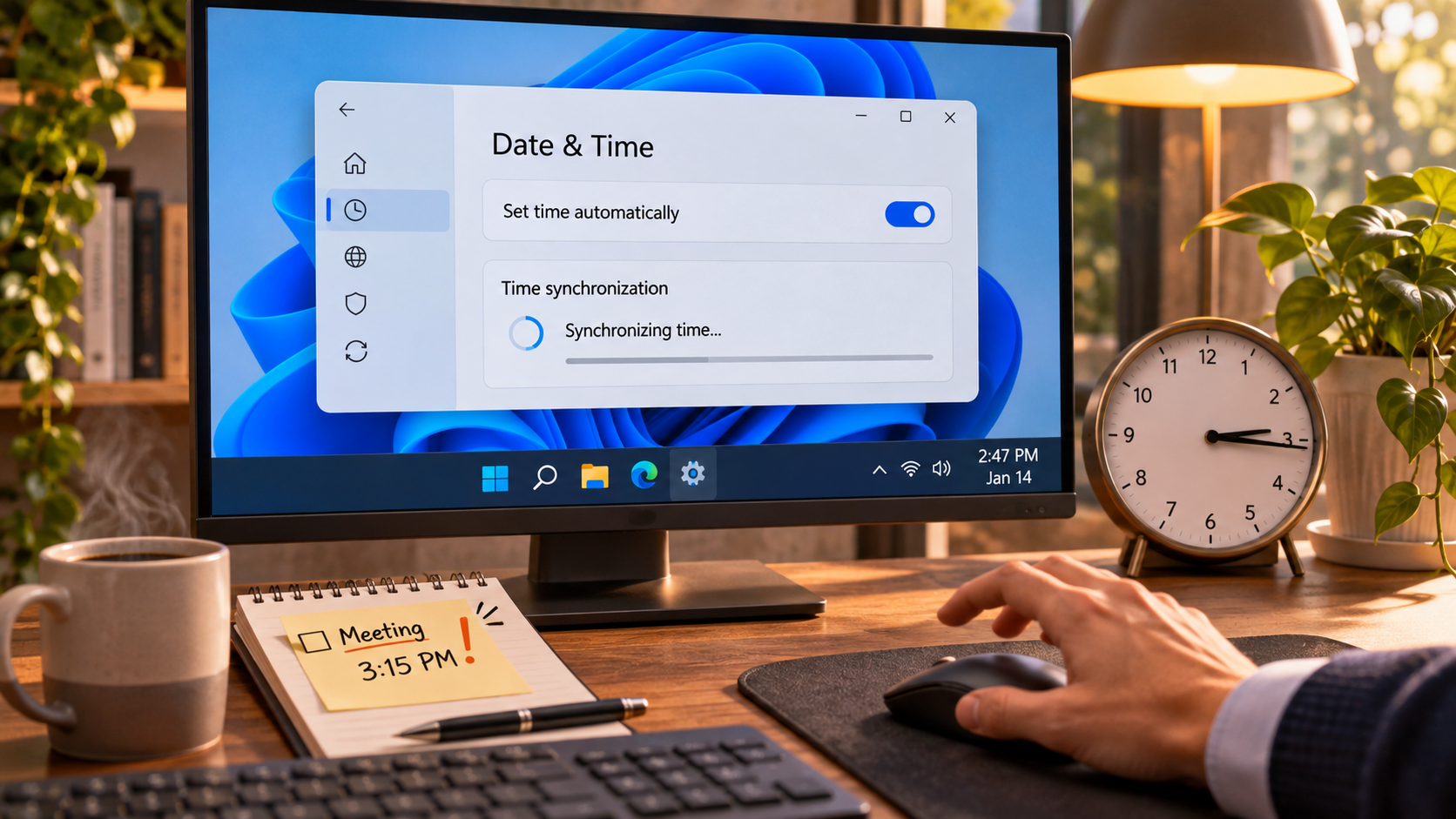
The video appointment was about to start when the clock in the Windows taskbar looked ten minutes behind the time on the kitchen timer. The meeting link opened, but a sign-in code had already expired. My first impulse was to click Sync now again and again. That would not tell me whether Windows had a bad time zone, no network path to a time source, or a service that was not responding.
When Windows 11 time synchronization fails, the useful first move is to separate those causes. A time-zone mismatch can make a correctly synchronized clock display the wrong local time. A disconnected network, VPN, company policy, or Windows Time service issue can prevent synchronization itself. Changing the clock manually before checking those basics can create more trouble with sign-ins, certificates, and scheduled appointments.
Check the time zone before changing the clock
Open Settings > Time & language > Date & time. Confirm that the selected time zone matches the computer’s actual location. If the clock is off by a whole hour or several hours, the time zone is a better first suspect than a time server. A person traveling, using a remote desktop, or working from a device configured for another region should check the device’s setting rather than assume the browser’s location controls it.
On the same page, turn on Set time automatically. Turn on Set time zone automatically if Windows can determine the device’s location accurately and that option fits your setup. On a managed work computer, a gray or locked toggle may be intentional. Do not bypass a company policy just to force a local setting; ask the IT administrator which time source the device should use.
Microsoft’s date and time settings guide describes changing automatic time and the time zone from Windows Settings. Once the time zone and automatic setting are correct, choose Sync now once and wait. Check whether the taskbar clock changes and whether the last-sync information updates before trying again.
| What you notice | Check first | Safe next move |
|---|---|---|
| Clock is off by a whole hour or more | Time zone | Select the zone for the device’s actual region |
| Clock slowly drifts | Automatic time | Enable automatic time, then sync once |
| Sync fails or hangs | Internet, VPN, work policy | Confirm connectivity; contact IT on a managed PC |
| Clock is wrong again after every restart | Firmware, device health, policy | Record the pattern and contact the device maker or IT |
If Sync now does nothing, narrow the cause
First verify that the computer has working internet access by opening a normal webpage. A Wi-Fi icon alone does not prove the computer can reach the internet. A VPN, firewall, captive portal, or organization-managed network may also affect time synchronization. On a personal computer, you can compare once on a trusted network without the VPN if your setup permits it. Do not disable security controls on a work device; ask its administrator instead.
Next, return to Settings > Time & language > Date & time and use Sync now once. Menu labels can vary slightly across Windows builds. Note the exact message if the attempt fails and record the displayed time and time zone. That information is more useful than repeatedly pressing the button or changing the clock by hand.
The unexpected clue is that a wrong-looking clock does not automatically mean the time server is broken. If Windows is synchronizing correctly to a source while the wrong time zone is selected, the displayed local time will still look wrong. If a work policy keeps restoring the setting, the problem may not be in the button at all. Check the setting that controls the display before troubleshooting the service that supplies the time.
Check the Windows Time service without resetting it blindly
Press Win + R, enter services.msc, and look for Windows Time. On a personal PC where you have permission, a stopped service may be started from that window. If the computer is joined to a work or school domain, the organization may supply time through its domain hierarchy. In that case, do not force a public time server or edit registry values based on a generic internet tip.
The w32tm /resync command can request synchronization, but it may require an elevated Command Prompt and can be subject to organization policy. Microsoft Learn documents w32tm as a Windows Time diagnostic and configuration tool, and explains that domain computers can follow the domain time hierarchy. If the command reports that no time data is available, save the message and check the network path or ask IT rather than running unregister, registry-reset, or service-reinstallation commands as a first response.
If the clock becomes wrong after each shutdown, consider causes beyond Windows Settings. Firmware settings, a failing motherboard battery on some desktop PCs, or a managed configuration can produce a recurring pattern. Hardware steps depend on the exact model. Consult the manufacturer’s instructions or a technician before opening a device or changing BIOS settings.
Quick questions
Should I keep clicking Sync now? No. Run it once after checking the time zone and automatic-time setting, wait for the result, then use the error message to choose the next check.
Should automatic time zone always be on? It can be convenient when Windows can identify the device’s location. If you travel, use a fixed work setup, or prefer a manual zone, select the correct zone yourself.
Should every PC have Windows Time set to Automatic? Not necessarily. A personal computer and a domain-managed work device may use different configurations. Follow the organization’s policy on a managed device.
At a glance
Check the time zone and automatic-time setting first; run Sync now once and wait for the result.
If the failure repeats, separate network, service, work-policy, and hardware causes before changing advanced settings.