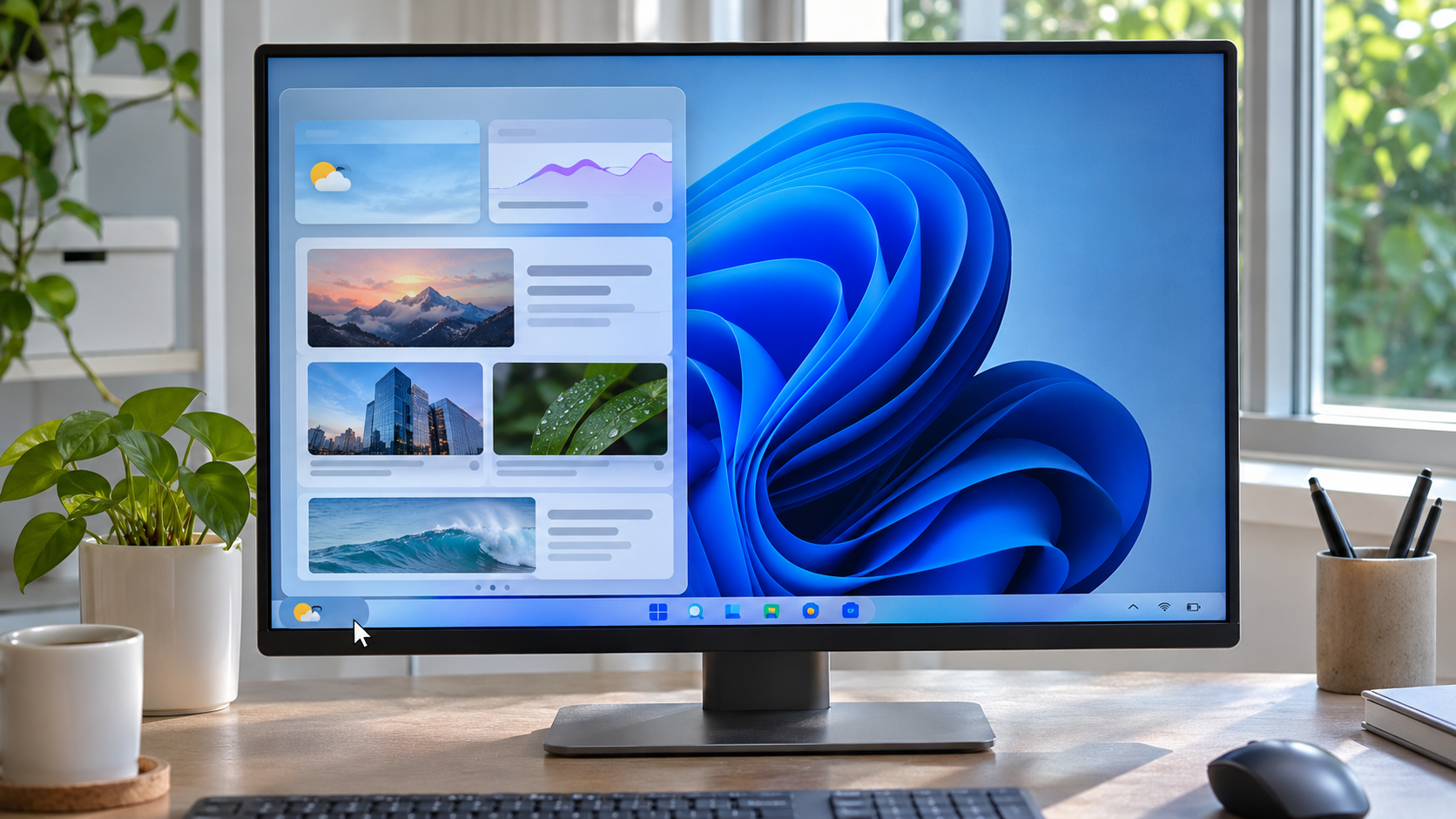
The news card appeared during the screen share
I was about to share a settings window when the pointer brushed the weather area on the taskbar. A panel of cards opened over the desktop, and the headline I had not read became the most visible thing in the meeting. I closed it, moved the pointer away, and noticed a badge on the Widgets icon. It looked as if Windows had ignored my earlier attempt to turn Widgets off.
The useful clue was that I had changed only one control: whether the Widgets button appeared on the taskbar. That control is different from access to the Widgets board and from the board’s own news and notification settings. Hiding the button can remove an accidental click target without removing every way to open the board. Before changing anything else, decide which result you want: hide the taskbar entry, stop opening the board on hover, or reduce the cards and badges inside it.
| What you want | Where to check | What may still work |
|---|---|---|
| Hide the taskbar button | Taskbar settings, under Taskbar items | Open the board with Windows key + W |
| Avoid opening it when the pointer passes over it | Widgets board settings, if that option is available | Select the taskbar button manually |
| Reduce badges or alerts | Widgets notification settings | Open the board and view cards |
| Keep Widgets but quiet the news stream | Discover interests and card controls | Other widgets and their own app settings |
Hide the taskbar button first
Right-click an empty area of the taskbar and select Taskbar settings. You can also open Settings > Personalization > Taskbar. Expand Taskbar items, then switch Widgets off. The control changes whether the Widgets entry is shown on the taskbar; it does not uninstall an app or delete the board’s data. Menu wording can shift slightly between Windows releases, so use the setting labels currently shown on your device.
After switching it off, check whether the taskbar button disappears. Microsoft’s Windows taskbar customization guide describes this Widgets switch under Taskbar items. Microsoft also explains that the board can still open with Windows key + W, even when its taskbar entry is hidden. That is expected. If your only problem was accidentally touching the icon during a presentation, hiding the button may already be enough.
If the board opens again, do not assume the toggle failed. Notice how it opened: did you press the keyboard shortcut, select a remaining entry, or move the pointer over a hotspot? Open Taskbar settings again and confirm the switch state. Change one control at a time, then repeat the same action. This simple comparison makes the cause clearer than switching off several parts of Windows at once.
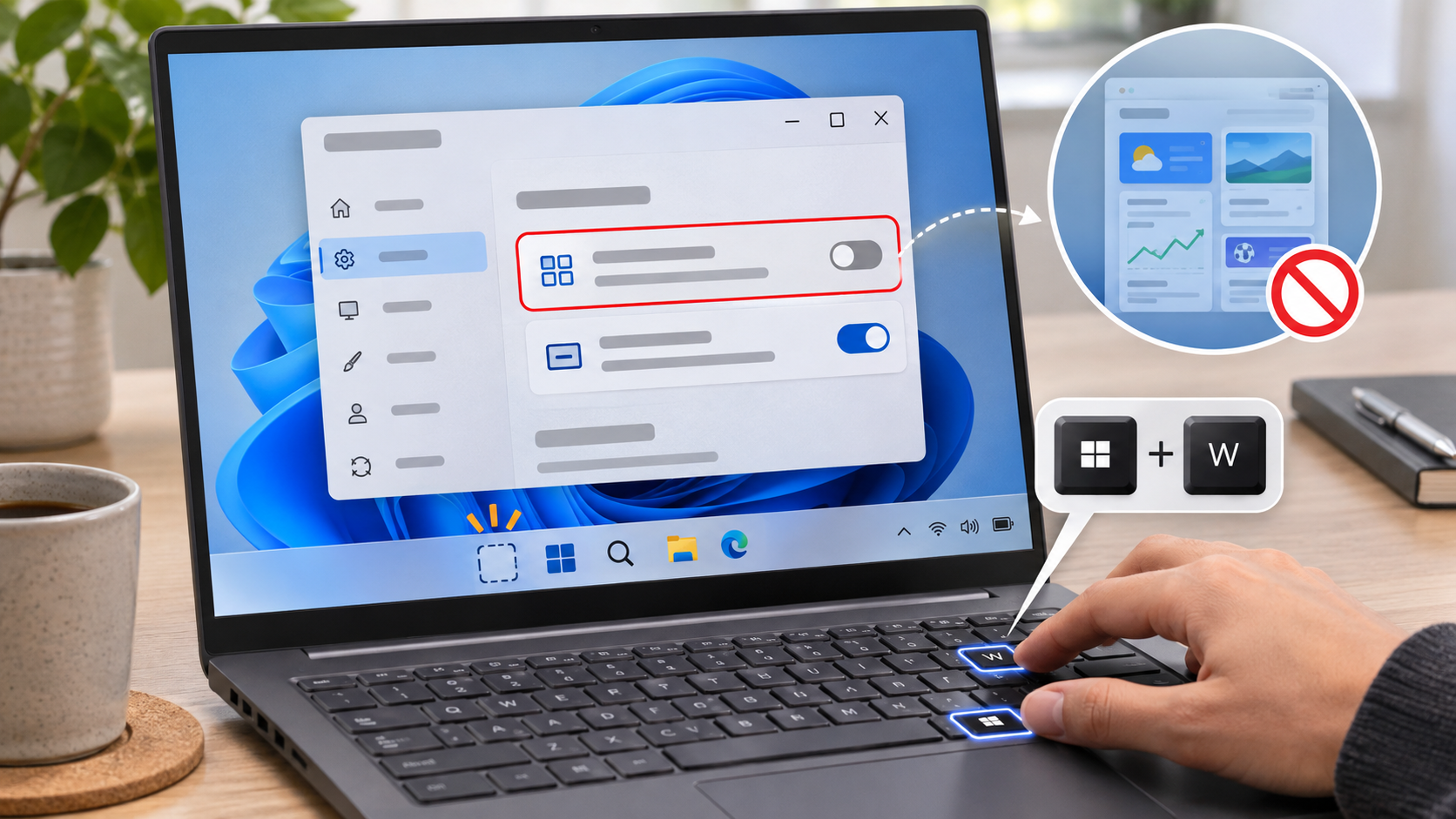
Adjust news cards and notifications separately
Open the Widgets board and select its Settings button. Depending on the Windows version, you may find a control for opening the board on hover and separate controls for notification badges or dashboard alerts. If the taskbar button is gone, use Windows key + W to reach the board. In Discover, review the available interest and card controls; a card menu may offer options such as hiding a source or indicating that you are not interested.
The phrase “turn off the news feed” can describe several different things. Hiding a Discover card does not necessarily disable other widgets. Turning off taskbar badges does not necessarily stop Windows notifications from unrelated apps. Microsoft’s guide to Widgets in Windows notes that individual widgets may be connected to their own apps or services, which can have separate settings. Pick the control that matches the behavior you actually want to change.
Some settings may be unavailable on a work or school computer because an administrator manages the taskbar. A switch that is greyed out, or that returns to its previous value after sign-in, is a reason to ask the device administrator about policy. Do not use a registry edit or an unknown “debloat” script to override a managed setting. That can change more than the Widgets experience and make later support harder.
It also helps to separate a badge from a pop-up. A badge is a small visual marker that signals something needs attention; it is not necessarily the same as a Windows notification banner. If you want fewer interruptions, open Widgets, select its settings, and review the badge and dashboard notification options separately. The names and exact set of controls can change with Windows updates, so follow the labels visible on your device rather than instructions for an older release. If only one dashboard is noisy, adjust that dashboard before muting every widget.
For a presentation or recording, do a quick rehearsal after changing the setting. Put the pointer where you normally work, test the taskbar, and check whether the board opens when you move near the screen edge. This is a reversible test: you can restore the taskbar item or its notification settings later. Avoid trying multiple registry scripts just to make the board impossible to open. A more targeted choice—hide the button, disable a hover trigger if available, or reduce a particular notification—usually preserves useful features while removing the interruption you noticed.
If the board contains a mix of useful and distracting cards, review them one by one instead of treating the entire board as a single switch. You might keep a calendar or weather widget and reduce the Discover items that interrupt concentration. A widget’s own menu may expose its size, configuration, or removal options, while news sources and interests are managed from the Discover area. These controls serve different purposes, so make a note of the current layout before experimenting if you want an easy way back.
Finally, check whether another person or administrator manages the Windows profile. Shared computers, school devices, and company PCs may apply a taskbar configuration at sign-in. If your switch changes back only after logging in, that timing matters. Take a screenshot of the setting and note the device type, Windows version, and when it resets; then ask the support team whether a policy controls Widgets. The taskbar control is a user-facing preference, but a managed policy can take precedence. Trying to force a local override may make the setting less stable, so confirm ownership before troubleshooting at a lower level.
Confirm the result with one simple check
After changing a setting, close and reopen Settings to confirm that the switch stayed in the chosen position. Then test each behavior separately: is the taskbar button visible, does hovering open the board, and does a badge appear? If you hid only the button, pressing Windows key + W may still open Widgets; that alone does not mean the taskbar setting failed.
If the setting seems to revert, note when it happens and whether the computer is managed by an organization. Restarting Windows or resetting the PC is a much larger step and is not the first way to troubleshoot one taskbar item. If the control is available, you can restore the original behavior by returning to Settings > Personalization > Taskbar > Taskbar items and switching Widgets on again.
One last distinction helps when the complaint is about “news” rather than the icon. The taskbar button may show a weather or notification cue even when you do not read the Discover feed, while the board can contain widgets beyond news. Decide whether you want to remove a shortcut, silence a badge, or change the content shown. Make the smallest relevant adjustment and leave unrelated Windows notifications alone. That keeps the fix easy to reverse and avoids hiding useful calendar or weather information just to stop one distracting card.
Before changing another setting, write down what the board did and when. “It opened while I moved the pointer near the weather area” is more useful than “Widgets came back.” If it opened only after a keyboard shortcut, the taskbar switch may still be working exactly as intended. If it appears only after sign-in on a company laptop, a managed configuration may be restoring the taskbar. These different patterns point to different next checks, so a short observation can prevent an unnecessary reset or a risky registry edit.
Frequently asked questions
Does hiding Widgets from the taskbar delete the news feed? No. It hides the taskbar entry. The board can remain available through Windows key + W.
Why can the board still open after I switched Widgets off? The taskbar button and board access are separate. A keyboard shortcut or another available gesture may still open it.
What if the Widgets switch is greyed out? A work or school policy may control the device. Ask the administrator rather than using a registry workaround.
At a glance The taskbar button, Widgets board, and its badges or news cards have separate controls. Change the setting for the behavior you want, then test that behavior once.